2019年1月19日 星期六

Troubleshoot - 2018-11 適用於 x64 系統 Windows 10 Version 1803 的更新 (KB4023057) - 錯誤 0x80070643


Windows 10 Version 1803 執行Windows Update 出現錯誤

更新 (KB4023057) - 錯誤 0x80070643


試了兩個方式無效
1. Windows 問題疑難排解 (Troubleshoot)
2. Dism


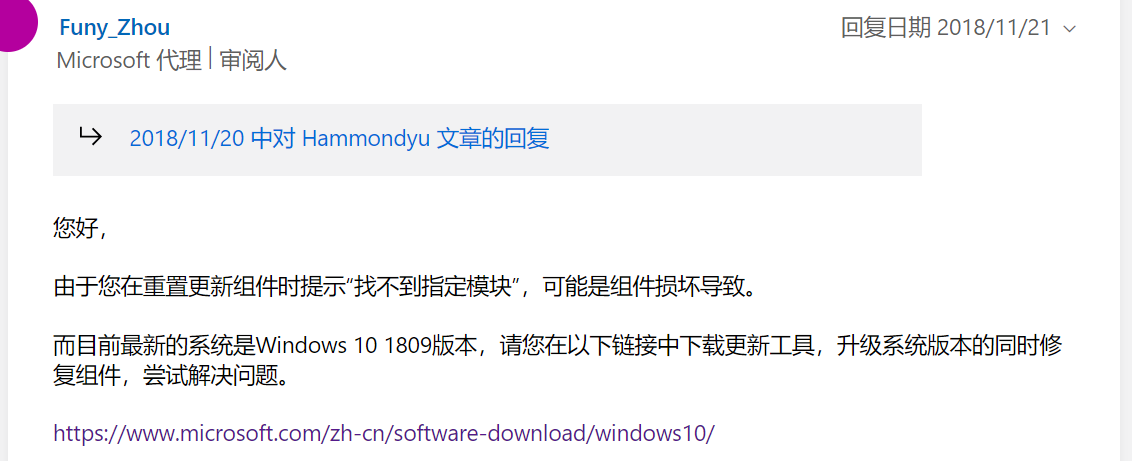
最後找到簡單的方式解決,直接更新到 Windows 10 Version 1803 即可

https://answers.microsoft.com/zh-hans/windows/forum/all/2018-%E9%80%82%E7%94%A8%E4%BA%8E-windows-10/241f4af0-d8fa-46cb-b5f9-0d0fb71410ba


檢查適用性與下載網址  https://www.microsoft.com/zh-tw/software-download/windows10/


2019年1月15日 星期二

TPAM - request申請單的生命週期與簽核


TPAM 中的申請單會有一個屬性,稱為狀態(Status)。從申請開始到使用結束,生命週期中有下方這些狀態。

  • Pending Approval - waiting for authorized approver/s to approve the request.
  • Active/Approved - the request has been approved and is within the release duration window.
  • Approved - the request has been approved but the request date/time is in the future.
  • Denied - the request was denied by the approver/s.
  • Canceled - the submitted request conflicts with a request that has already been approved for the same time period or the requestor decides to cancel the request prior to accessing the password. The request will also be cancelled if the ticket number entered on the request requires validation, and fails.
  • Expired - the release window for the password has passed or the requestor is done accessing the password and expires the request early.
  • Extended - the release has been extended past the original requested duration.

當申請者提出request,核准者會收到郵件通知。點選下方的URL Link即可登入系統簽核該張申請單。


當表單已經被簽核過,表單狀態變更了,再次點擊URL Link進入TPAM系統,會發生什麼狀況?  以下做個小測試:

Pending Approval


Approved


Expired


Denied


當一張Request申請單,還沒有結束他的生命週期,卻遇到了權限變更,有時候直接點選URL進行簽核會遇到問題,如下方幾個貼圖。這時候回到TPAM登入後的首頁,點選Pending Approval進行表單簽核即可。

Firefox:


 IE:


2019年1月7日 星期一

Active Roles - 新增使用者時 自動給預設密碼

在使用ARS Web介面,新增使用者時,可以用OU為單位,來設定 '

  1. Password Policy
  2. 自動帶入預設密碼
這樣可以節省時間,增加效率。設定方式如下:

設定密碼的default value

選擇要套用的OU


2019年1月4日 星期五

TPAM - 新增群組成員時發現都是反白的無法點選變更

以下兩個情境,各有不同的Group and UserID 管理方式。

1. 群組與UserID是從LDAP帶過來的,這種方式無法透過TPAM修改群組成員(反白)。須在AD新增成員到OU,TPAM會透過Auto Discovery 做sync。


2. 如果是在TPAM手動建立的Group,則可以增加Local Useror LDAP User到此Group。


2019年1月2日 星期三

Upgrade Oracle DBA OCP 10g to 12c R2 ..... Certification Paths

1Z0-060   Oracle 10g OCP --> Oracle 12c OCP 

https://education.oracle.com/upgrade-to-oracle-database-12c/pexam_1Z0-060

Recommended Training

  • Oracle Database 12c R1: New Features for Administrators Ed 2

Additional Preparation and Information

Practice Exams: Oracle Authorized practice exam from Kaplan IT Training: 1Z0-060 Upgrade to 12c - New Features of Oracle Database 12c
https://www.kaplanittraining.com/certification/oracle/1z0-060


1Z0-074   Oracle 12c OCP --> Oracle 12c R2 OCP

Recommended Training

  • Oracle Database 12c R2: New Features for 12c R1 Administrators Ed 1
    • Training On Demand Train online via an Internet connection, 24/7. NT$55,575.00 90 Days (Oracle University)
    • Live Virtual Class Attend live classes in real-time from anywhere with an internet connection. 5 Events5 Days (Oracle University)
  • Oracle Database 12c R1: New Features for Administrators Ed 2

Additional Preparation and Information

Practice Exams: Oracle Authorized practice exam from Kaplan IT Training: 1Z0-074    Upgrade Oracle DBA 11g or 12c to 12c R2 (OCP)


Oracle Database 12c R2: New Features for Administrators Part 1 Ed 1
https://education.oracle.com/oracle-database-12c-r2-new-features-for-administrators-part-1-ed-1/courP_7999

  • Oracle 12cR2資料庫之新功能介紹-DBA篇Part 1  台北 19503 班 2019/04/08 ~ 2019/04/12 每週一二三四五 09:00~16:30  (恆逸)

Oracle Database 12c R2: New Features for Administrators Part 2


2018年12月27日 星期四

升級 Foglight for Virtualization Enterprise Edition to 8.8.5

Understanding product versions

The Management Server and the Agent Manager have been updated to version 5.9.4 for this release.

Supported upgrade path

  • Foglight for Virtualization, Enterprise Edition 8.8.5 may be directly upgraded from version 8.8. 
  • To upgrade from version 8.7.5, 8.7, 8.6, you must first upgrade the virtual appliance to version 8.8, then to version 8.8.5. 
  • To upgrade from version 8.5.5, 8.5, 8.4, 8.3, or 8.2, you must first upgrade the virtual appliance to version 8.6, then to version 8.8, then to version 8.8.5.

Foglight for Virtualization, Enterprise Edition versions

Foglight for Virtualization, Enterprise Edition consists of these key software components:
• Management Server
• Agent Manager
• Cartridges

Component versions

  • Management Server, version 5.9.4
  • NOTE: Foglight for Infrastructure 5.9.4 is embedded with the Management Server.
  • Agent Manager, version 5.9.4
  • Foglight for Action Packs, version 5.6.3.8
  • Foglight Automation, version 5.6.3.8
  • Foglight Capacity Director, version 5.7.7
  • Foglight Capacity Management, version 5.7.7
  • Foglight Capacity Manager, version 5.7.7
  • Foglight Change Analyzer, version 5.7.7
  • Foglight Chargeback, version 5.7.7
  • Foglight for Hyper-V, version 5.7.7
  • Foglight Resource Optimizer, version 5.7.7
  • Foglight for Storage Management cartridge, version 4.6.5
  • Foglight for VMware, version 5.7.7
  • Foglight Net Monitor, version 5.9.4


Preparing to upgrade Foglight for Virtualization, Enterprise Edition

  1. Create a support bundle from your Management Server.
  2. Back up the file system in which Foglight for Virtualization, Enterprise Edition is installed.
  3. Back up your database
  4. Deactivate all agents through the Agent Status dashboard (Dashboards > Administration > Agents >
  5. Agent Status).
  6. If you are currently running the VMware Performance Agent on a 64-bit Management Server, you can use the embedded Agent Manager for the VMware Agent to monitor up to 500 total VMs.

Note for installations monitoring large VMware environments

Some installations monitoring large VMware® environments have customized the VMware agent memory settings. These settings must be reapplied because the upgrade procedure overwrites them with the default settings. 
For each Agent Host with existing VMware Performance agents:
  1. On the agent machine, open the baseline.jvmargs.config file for editing. The file is located in the<Agent_Manager_home>/state/default/config directory.
  2. Make note of the vmparameter.x values. If the values on your agent are different, they must be reapplied after the upgrade.
  3. After upgrading and reapplying the values in the baseline.jvmargs.config file, remove the deployed negotiation configuration settings directory  (<Agent_Manager_home>/state/default/config/deployments), and restart the Agent Manager. The new settings take effect after the Agent Manager is restarted.

Upgrading Foglight for Virtualization, Enterprise Edition from a previous version

The Foglight for Virtualization, Enterprise Edition components (Management Server, Embedded Agent Manager, Cartridges) are all upgraded automatically by the Foglight for Virtualization, Enterprise Edition installer.

  1. Download the Foglight for Virtualization, Enterprise Edition installation package for your platform from the Support Portal.
  2. Manually shut down your Foglight Management Server. Do not depend on the installer to shut down your running Management Server and/or embedded database, due to the timing problem. Ensure that the Management Server has stopped running before launching the Foglight for Virtualization, Enterprise Edition installer. To verify that all Management Server processes have stopped, type the following command: tasklist /v | find "fms"
  3. For extra reliability, you must back up the Foglight database.
  4. Upgrade the existing Foglight for Virtualization, Enterprise Edition installation using the appropriate installer.
  5. The installer detects the earlier version of Foglight for Virtualization, Enterprise Edition. Follow the on-screen upgrade instructions. Select Upgrade and click Next.
  6. After the Foglight for Virtualization, Enterprise Edition application is upgraded, the licensed cartridges are upgraded automatically.


Upgrading the Agent Manager

The embedded Agent Manager is updated as part of the upgrade process. Any additional, external Agent Managers may need to be updated. If the Version of any agent host listed is not 5.9.4, continue following this procedure to upgrade the Agent Manager.
  • To upgrade, select the agent host from the list and click Upgrade. The process may take a few minutes andthe agent host may disappear from the list temporarily while it is restarting.

Upgrading Foglight for Virtualization, Enterprise Edition agents

After upgrading Foglight for Virtualization, Enterprise Edition, the database, and cartridges, the agents used by some of the cartridges must be updated to ensure proper data collection. Specifically, this section describes the procedures for upgrading monitoring agents.

Upgrading the VMware Performance agent

  • Log in to Foglight for Virtualization, Enterprise Edition using an account with administration-level permissions.
  • Deactivate all VMware Performance agents.
    • On the navigation panel, under Dashboards, click Administration > Agents > Agent Status.
    • On the Agent Status dashboard, select the existing VMware Performance agents and click Deactivate.
  • Upgrade the agent package. On the VMware Environment dashboard > Administration tab, select all agent instances from the Agents table, and click Update Agent on the menu bar.
  • Activate all VMware Performance agents. On the VMware Environment dashboard > Administration tab, select the deactivated VMware Performance agents, and click Activate on the menu bar.


Upgrade Foglight for Infrastructure

As part of the transition to Quest Software, Foglight for Infrastructure 5.8.5.8 and higher deprecate the following agent types:
  • DellUnixAgent: Replaced with the new UnixAgentPlus agent type.
  • DellFileLogMonitorAgent: Replaced with the new FileLogMonitorAgent agent type.
  • DellWindowsEventLogMonitorAgent: Replaced with the new WindowsEventLogMonitorAgent agent type.
Install version 5.9.4 of the cartridge as you would a new Foglight for Infrastructure cartridge. Do not delete the older version of the .car file. Install version 5.9.4 over the older version.


One Identity Safeguard - 使用密碼庫管理系統以動態獲取連線帳密


Application to Application (A2A) integration


用於向系統管理員以及Application to Application和Application to Database方案發布特權憑據。
在應用程序到應用程序和應用程序到數據庫方案中,特權帳號密碼的發出,可以結合自動化工作流程來達成。

One Identity Safeguard for Privileged Passwords 應用程式密碼管理功能,可將hardcoded的應用程式密碼和資料庫密碼,替換為使用程式呼叫,以動態接收帳戶密碼。
可避免在程式中 Hard-Coded Credentials

使用A2A整合 動態的取得帳密

使用 "Application to Application" 服務,允許協力廠商應用程式從 Safeguard for Privileged Passwords vault中取得連線密碼, 而無需通過一般的工作流程。例如, 假設您有一個自動系統,每24小時對資料中心的各種服務執行一次例行系統診斷。為了使自動化系統執行診斷,它必須首先對目標伺服器進行身份驗證。由於目標伺服器的所有帳密都存儲在 Safeguard for Privileged Passwords vault中,因此自動系統通過將使用程式呼叫,以動態接收帳戶密碼。。

1. Retrieve the API key for the selected account from the Safeguard for Privileged Passwords API:


2. To retrieve a credential, use the following request:


可自動更新windows服務與排程工作的密碼

另外一個密碼管理的功能,可以解決常見的問題: 修改密碼後導致windows服務無法啟動的狀況。

為了資安需求,主機的密碼會定期的更新,但常發現特定的服務會在密碼變更後無法啟用。
原因是安裝設定時,Service的帳號/密碼是指定特定user,而非直接使用 Local Service等預設帳號。


One Identity Safeguard for Privileged Passwords 提供的功能,可以避免這個問題。
1. 密變更時更新服務
2. 密碼變更時更新工作


更多的資訊,請參考原廠網頁: https://www.oneidentity.com/products/one-identity-safeguard-for-privileged-passwords/